
Google Merchant Center Misrepresentation: How to Fix the Suspension and Win the Review
Merchant Center misrepresentation suspension? Fix business details, prices, stock, shipping and returns in Shopify, check they show up, then send one review.
Updated 8 October 2026. I checked every Google rule here against Google's help pages on 7 and 8 October 2026.
Google rule: Google's help pages say it, and I link the page. Our practice: my team does it on client stores. Google does not promise it.
Do These Three Things in the First Hour
- Read the notice. Go to Products, then Needs attention, then View setup and policy issues. Write down the issue name and the date. Take a screenshot.
- See what still runs. The unpaid product spots on Google are called free listings. A warning, a full suspension, a free listings issue and a product issue each block something different.
- Do not edit anything yet. Sometimes only free listings are hit and paid ads still run. A panic edit can break them.
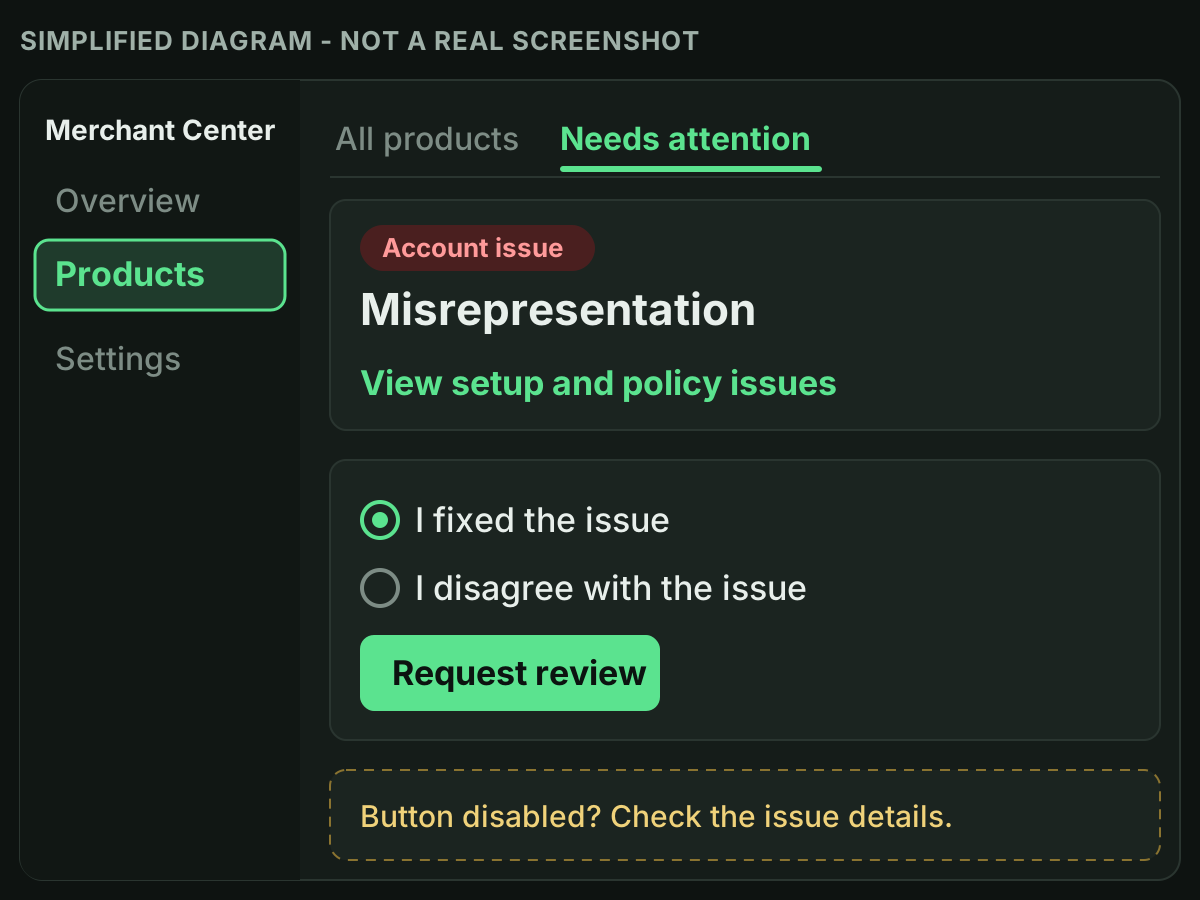
- 1Products in the left menu.
- 2The Needs attention tab.
- 3View setup and policy issues. This shows the type and date.
- 4Pick I fixed the issue, or I disagree with the issue.
- 5Request review. Answer any prompt that opens, then submit.
- 6Button disabled? Check for a cool down end date, unfinished identity checks or an empty product list.
Running a dropshipping store? Read our guide to a Google Merchant Center suspension on a dropshipping store too.
Warning, Suspension or Product Issue: What Still Runs?
- Warning. Google found a problem and set a deadline of 7 or 28 days for most issues (policy). Until then, products can keep showing to fewer shoppers. Google calls that limited visibility. First move: fix it before the deadline. This is the cheapest moment to act.
- Account suspension. The whole account failed the policy check, and your products come off Google Shopping (policy). First move: fix every cause, then request one review.
- Free listings only. The issue hits the free product spots. Paid Shopping ads can keep running. In my video I say "in a lot of cases it just affects free listings and you can still continue to run ads normally". First move: leave the ad setup alone and fix the issue calmly.
- Product issue. Some products break a rule. The account itself is not suspended. In the video I call it "just a product suspension or feed issue". First move: edit or remove those products and leave the rest alone.
So, don't overreact. Don't touch anything before that.
Key Facts from Google's Misrepresentation Rules
Every fact here comes from Google. Sources: the misrepresentation policy, the request a review page, the fixing suspensions page and the linked account suspension page.
- 3 of 6 types hit with no warning. These are the very serious types. Google's word is "egregious": a violation "so serious that it is unlawful or poses significant harm to our users". Those accounts are "suspended upon detection and without prior warning". The other 3 get a warning "at least 7 days prior to any suspension".
- You may get one chance to disagree. Google's words: "You may only have one chance to disagree with the issue."
- Failed reviews can lock the button. Google can make you wait before you ask again. It calls this a cool down. The Request review button greys out until a set end date.
- A suspended Google Ads account comes first. Google's words: "The Google Ads suspension must be fixed first before your Merchant Center suspension can be reviewed." Unlinking it "won't unsuspend or resolve your Merchant Center account issue."
- Google looks beyond your product list. That list is your feed, which Merchant Center reads from your store. Google "may review information from multiple sources including your listing, website, accounts, and third-party sources."
- A review takes time. Google says up to 7 business days, and longer for complex reviews.
Which Misrepresentation Type Do You Have?
Google groups misrepresentation into six types. Your notice may only say "Misrepresentation". Google's policy sets each type and its warning rule. The triggers and first fixes come from our work on client stores.
- Unacceptable business practices. No warning, suspended on detection. Triggers: fake or missing business details, or an address where you do not really work. Also hiding where orders ship from, or acting like a brand you are not. First fix: real business details in the right fields, and say where you ship from.
- Dishonest pricing and transaction conditions. No warning, suspended on detection. Triggers: hidden shipping or fees, and return windows that start on the order date. Also a fast delivery promise, with a long wait before you ship (handling time) in small print. First fix: show the full price and all costs before checkout, and make shipping and returns match Merchant Center.
- Coordinated deceptive practices. No warning, suspended on detection. Trigger: hiding who you are while pushing political or social content. First fix: appeal only if Google got it wrong, and say why.
- Unavailable offers. Warning first, at least 7 days. Triggers: products shown in stock that you cannot ship, or a fake local warehouse to look fast. First fix: make stock and prices in Merchant Center match Shopify, and remove what you cannot ship.
- Unreliable claims. Warning first, at least 7 days. Triggers: the product text your supplier wrote (supplier copy) with miracle results, cure claims, "lose 10 kg in a week". First fix: say what the product is, not what it promises.
- Manipulated media. Warning first, at least 7 days. Trigger: doctored media about politics or public issues. First fix: remove the media, and appeal if Google got it wrong.
Think your store name caused it? Read misrepresentation and your own store name.
The Notice Only Says "Misrepresentation"
No type named? Check in this order.
- Linked Google Ads account. Is one suspended? Google says it must be fixed first.
- Price and stock. The product pages your ads send people to are called landing pages. Google's price mismatch page says: "Ensure that prices in your product data match those on your landing pages." Check each size or color of a product (each variant) one by one. Each one should show its own price and stock.
- Shipping speed. The delivery time in Merchant Center must match your store.
- Business details. Real address, real contact details, in the right fields.
- Sale prices and the price code on your page. Feedonomics, a feed management company, says sale prices must match checkout. It also says Google may only read the regular price from the hidden product code on your page (structured data). Test a product page in Google's Rich Results Test and check the price it finds.
- Product text and reviews. Health claims, "guaranteed" claims, copied reviews.
- Third-party sources. Search your store name and read what customers say.
Put the Right Name in Each Field
Your store name, legal company name and verification details are three different things. Each goes in its own place.
- Store name. Goes in the Merchant Center business name, which shows in your ads and free listings. Put a short name, up to 40 characters: your brand or website name, with no "Inc." or "GmbH". Google rule: business name guidelines.
- Business address. Goes in Merchant Center business info. Put the address where your business is registered. Google rule: business information.
- Customer service contact. Goes in Merchant Center business info and on your contact page. Put a phone number and email that work. Google rule: business information.
- Identity verification. Shows in Needs attention, only if Google asks. Have your government ID or business registration documents ready. Google rule: request a review.
- Legal company name and address. Goes in your site footer, contact page and legal pages, next to your brand. Put the name and address on your business registration. Our practice.
- Ships from. Goes on your shipping page. Put where orders really ship from. Google rule: do not hide it (policy).
The policy bans three identity tricks:
- Showing "a false identity, business name, or contact information".
- A virtual address as your headquarters. That is a mail address where nobody works. It is banned when you really operate from somewhere you do not disclose.
- "Intentionally hiding the actual location from which your products are shipped".
Fix Policy Pages, Prices and Shipping Times
Google rule (shipping speed help page): "The shipping speed you add to Merchant Center must match what's on your online store." Our practice: if you cannot match it exactly, set a longer time in Merchant Center. Never a shorter one.
Every store needs a return policy (who pays return shipping, where returns go) and a shipping policy (handling time plus delivery time). It also needs a contact page, an about us page, a privacy policy and terms.
Watch the small print. Google's policy lists these under dishonest pricing, a no-warning type:
- A big "fast delivery" line, with a longer handling time hidden in small print.
- Hidden return costs. Show cross-border return shipping costs before checkout. Also show any charge for taking an item back, called a restocking fee.
- International return windows that start on the order date, not the delivery date.
If your feed shows one price and the page another, fix one side so they agree. The Shopping feed optimization guide covers the feed side in full.
Clean up Claims, Reviews and Broken Pages
Look at your store like a customer.
- No miracle claims. "Cures back pain" in supplier copy is a risk. Say what the product is.
- No fake reviews, and no reviews copied from another site.
- No broken links. If you changed a page's address, send visitors from the old address to the new page. That is called a redirect.
- No empty pages or unfinished collections in the menu.
- Checkout works end to end. Place a test order.
Want every check in one place? Our free Merchant Center approval checklist has 47 checks.
Where to Fix It in Shopify
- Store name, address, phone, email. Settings, then General, then Store contact details. Check: your footer and contact page show the new details. (Shopify Help)
- Shipping rates and delivery times. Settings, then Shipping and delivery. Check: add a product to the cart. Checkout shows the same time as your shipping page and Merchant Center. (Shopify Help)
- Price and sale price. Products, then the product, then the Price section. The old, crossed-out price is called the compare-at price. Check: the product page price matches Merchant Center, for every variant. (Shopify Help)
- Stock. Products, then the product, then the Inventory section. Check: out of stock items show as out of stock on the site and in Merchant Center. (Shopify Help)
- Return, privacy, terms and shipping policies. Settings, then Policies. Check: each policy opens from your checkout and your footer. (Shopify Help)
- Policy and contact links in your footer. Content, then Menus. Add the pages to your footer menu. Check: click each footer link on a phone and a laptop. (Shopify Help)
- Request a re-review. Sales channels, then Google and YouTube, then the Settings tab, then Request re-review. Check: you get Google's confirmation email. (Google Help)
Shopify's Google and YouTube app sends your product changes from Shopify to Merchant Center for you (Shopify Help). So fix price and stock in Shopify, where the app reads them.
Check the Fix Reached Merchant Center
Compare a few products in Merchant Center with the live product pages: price, stock and shipping. If they match, you are ready. If not, find out why before you wait:
- Data sources. These are the feeds Merchant Center reads. Go to Settings, then Data sources. Is a second (supplemental) source or a rule changing price or stock? Google says a supplemental source can "update existing details" of your products (Google Help).
- Product-level shipping. You can set a shipping cost on one product. Then it replaces your account shipping settings for that product, in the matching country or region. Your account delivery times are ignored there too. So is any minimum amount a shopper must spend to get that rate (Google calls it minimum order value). Supply both on the product itself, or Google cannot work out the shipping speed (Google Help, checked 8 October 2026).
- Other feed apps. Does a second app also send products to Merchant Center? Its old data can win.
- Still the old value everywhere, with no rule or app in the way? Then Merchant Center has not picked up the change yet. Wait, and check again before you ask for a review.
Before You Appeal: Build Your Fix Record
Google says you "may receive a prompt to submit additional information regarding your website, products, or business." Have it ready.
- A fix list. One line per fix, with the date. Example: "Added registered address to footer, [date]."
- Before and after screenshots. Footer, contact page, shipping page, returns page.
- Your business registration. The name and address must match your site's legal pages.
- Proof for any claim you kept. A certificate or test report. No proof? Remove the claim.
"I fixed the issue" means you changed things. "I disagree with the issue" means Google got it wrong. Pick that one only with proof, since you may get one chance.
The Appeal Path Step by Step
Step 1: Read the Notice and Screenshot It
Products, then Needs attention, then View setup and policy issues. Note the type, the date and any cool down end date.
Step 2: Check Your Google Ads Account
Linked Ads account suspended? Fix that first. Google says it must be fixed first. Read Google Ads suspended but Merchant Center is fine for the reverse case.
Step 3: Fix Every Cause in One Pass
Names, policies, shipping, prices, stock, claims, reviews, broken pages. Do not fix one thing and test it with a review.
Step 4: Check the Fix and Give Google Time
Compare a few products in Merchant Center with the live pages. Then wait 2 to 3 days after the last fix. That is what I do in the video. It gives Google time to visit and read your changed pages. I also send Google the list of the store's pages again. That list is called a sitemap. You send it in Google Search Console, Google's free tool for your site in search. It helps Google find the changed pages.
Step 5: Clear What Blocks the Review Button
Finish identity verification if asked. If your product data source is empty, add at least one product. In a cool down? Wait for the end date.
Step 6: Request the Review and Submit It
Pick "I fixed the issue" or "I disagree with the issue". Select Request review. If Google shows a prompt, answer each question. Paste your fix list, one short line per fix, like "Shipping page now matches Merchant Center: [X] to [Y] business days". Upload documents if asked. Then submit. On Shopify you can also use Request re-review in the Google and YouTube app.
Step 7: Watch for the Email, Then Keep the Store Stable
Google emails you when you request the review and when it is done. No first email? Check spam and the Needs attention tab before you do anything else. Once you are approved, slow down. As I say in the video, "keep it easy for one, two weeks before you start making any kinds of changes again".
How long in total? Your fix time, plus our 2 to 3 day wait, plus up to 7 business days for Google. A failed review adds a cool down on top.
Merchant Center Misrepresentation Appeal Rejected: What to Do Next
Stop sending reviews. A rejection means Google still sees a problem. Run the seven checks for a vague notice again. Look hardest at three things. Shipping times that differ between site, checkout and Merchant Center. An address that does not match your registration. Any supplier text with a health or "guaranteed" claim. For the three no-warning types, Google only reinstates in "compelling circumstances", meaning only for a very strong reason. So be thorough and honest.
Still not sure? Google says to "contact us for support if you're uncertain about the issue or about how to proceed." Use the contact link on Google's request a review page. On Shopify, use Get support in the Google and YouTube app (the 3-dot menu at the top right). Google says support may be limited during a cool down.
We do not tell clients to open a new account to get around a suspension. Google looks at linked accounts and outside sources. A new account for the same business can carry the same problem.
Dropshipping and Misrepresentation
Nothing in the policy bans dropshipping. Google bans hiding things. Where products ship from. Long handling times in small print. A virtual address that hides where you really operate. So say where orders ship from, show the real delivery time, use a real address and rewrite supplier copy.
More in our Merchant Center suspension guide for dropshipping, the dropshipping trust checklist and does dropshipping get stricter Merchant Center reviews?
Worked Example: A Sample Notice
A made-up store, not a client. Put your own numbers in the brackets.
The store sells phone cases from a supplier overseas. The notice says dishonest pricing and transaction conditions. That is a no-warning type, so the account is suspended. The owner finds five problems.
- Product page banner says "Fast shipping", while the real handling time sits in small print. Fix: show handling and delivery time next to the price.
- Shipping page shows a shorter time than real delivery takes. Fix: change it to the real time, [X] to [Y] business days.
- Merchant Center shipping has the same short time, copied from the wrong page. Fix: set the same [X] to [Y] business days.
- Returns page says [N] days from the order date. Google names international return windows that start on the purchase date. Fix: change it to [N] days from delivery.
- Footer has an email only, with no address and no ship-from country. Fix: add the registered address, and say orders ship from the supplier's country.
Each fix becomes one line in the fix list. Then the owner checks a few products in Merchant Center and asks for one review.
Who Wrote This
I'm Christopher Krassnig. I run ZenoX. We run Google Ads for 300+ stores, and a lot of them are dropshipping. On 7 October 2026 our Google Ads manager account held 431 active client ad accounts. One store can run several, one for each country it sells in. By our own internal count, not audited, we have $200M+ in client revenue tracked through our campaigns. Press releases and articles about ZenoX have run on Fortune, USA Today and Markets Insider. The media page lists each one and its placement type.
We have no published suspension case study yet. Our closest is a feed disapproval fix on a fashion dropshipping store, not a misrepresentation case.
Fix It Yourself or Get Help?
Nobody can promise a reinstatement. Anyone who does is guessing.
- First suspension, no failed reviews: do it yourself with this guide and the 47 checks.
- Two or more failed reviews: get a second pair of eyes. Each failure can start a cool down.
- Google Ads and Merchant Center both suspended, with real spend waiting: help makes sense, because the order matters.
Who should not hire us? Anyone who wants a trick to get an account back without changing the store. There is no trick. And if your ad spend is under €10K a month, that is below our hard minimum. Start in the Google Ads eCom Lab on Skool, $9 a month.
Real spend on hold and no time to dig? Chat with us on WhatsApp and send the store URL. The chat goes to the ZenoX team. We tell you what we see first.
Frequently Asked Questions
How do I fix Google Merchant Center misrepresentation?
Read the notice in Products, then Needs attention. Fix wrong or missing business details, prices, stock, shipping times and return terms in Shopify and in Merchant Center. Check the new data shows in Merchant Center. Then request one review, with a dated list of your fixes ready.
Is a Google Merchant Center suspension permanent?
Not always. It depends on the type. Google treats three types as very serious (its word is "egregious"). It suspends those with no warning. It only reinstates them in "compelling circumstances", meaning for a very strong reason. The other three types get a warning first.
How long does a Merchant Center review take?
Google says up to 7 business days, and longer for complex reviews. You get an email when you ask and another when it is done.
I fixed everything and my appeal was still rejected. What now?
Stop sending reviews. Check the linked Google Ads account, shipping times, prices, your registered address and your product text. Google also looks at third-party sources, so search your store name. Still not sure? Contact Google support. Then send one review.
Why can't I request another Merchant Center review?
Google names three reasons. A wait after failed reviews (a cool down), which greys out the button until the end date in the Needs attention tab. An empty product data source, so add at least one product. Or identity verification you have not finished.
Google Ads and Merchant Center are both suspended. Which do I fix first?
Google Ads. Google says the Ads suspension must be fixed before Merchant Center can be reviewed. Unlinking the Ads account does not get around this.
Should my store name in Merchant Center be my legal company name?
No. Google wants a short business name of up to 40 characters, like your brand or website name, with no Inc. or GmbH. The business address in Merchant Center is where your company is registered. Identity verification uses your ID or business registration documents.
Does a misrepresentation suspension stop my paid ads?
It depends on what was hit. A warning can leave products showing with limited visibility. A full account suspension takes your products off Shopping. Check the Needs attention tab before you touch anything.
Does dropshipping break the misrepresentation policy?
No. Nothing in the policy bans dropshipping. Google bans hiding things. Where products ship from. Long handling times in small print. A virtual address that hides where you really operate.
